


Recently, Sinokap engineers have received feedback regarding an issue where, after updating to Windows 10 version 1903 (build 18362), the computer’s Wi-Fi icon changes to a globe icon, indicating no internet connection, even though internet access functions normally.
Upon comparing registry settings, it was found that the function of the connection’s return value has changed. The principle is that the system will automatically send a request to Microsoft’s dns.msftncsi.com every time it is connected to the Internet, and then return a value of NCSI.txt. If the value is correct, it is confirmed that it has been connected to the Internet.
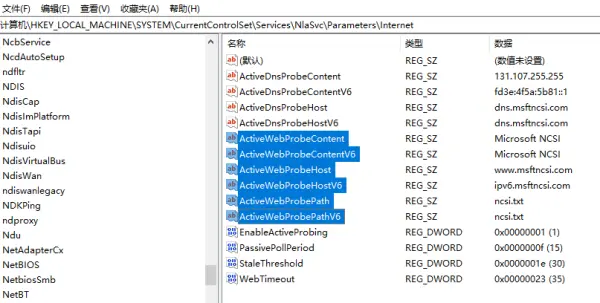
In the latest version of Windows 10, the return server and value have changed, affecting six registry keys. Due to network redirection by some domestic operators, these changes cannot receive correct feedback, leading to the issue where actual internet access is displayed as “No Internet.”

Before modifying the registry, you can simply try the following methods:
– Modify the DNS
– Disable multiplexed NICs
– Reinstall the network card driver
– Set up a virtual network card
– Reset network card device
– Delete hotspot and than reconnect
If none of the above methods work, try to modify the registry.
Shortcut key Win+R, enter regedit, open the registry, modify the EnableActiveProbing item under \HKEY_LOCAL_MACHINE\SYSTEM\CurrentControlSet\Services\NlaSvc\Parameters\Internet under the registry, and then change its value to 0, exit after confirmation, and restart computer.

If it still doesn’t work after trying this method, especially for new versions after Win10 18362 (i.e. 1903), canceling Internet access verification usually does not solve the problem, and you can use the following method again.
This was the correct registry key prior to version 18362. Modify the value according to the figure below, and change the selected item marked in blue to the value shown in the figure. EnableActiveProbing is still restored to 1. After restarting the system, the network will return to normal.
Sinokap hopes it can help you solve this problem successfully. If you have other IT-related issues, please contact us !
Call Us, Write Us, Or Knock On Our Door. We are here to help. Thanks for contacting us!
Subscribe now to keep reading and get access to the full archive.


